



Before scheduling Full-Service Aerial measurements for your company, make sure your account is fully configured. You’ll need to add required information such as your site details, contacts, and boundaries so the flight team can locate and process your aerial survey.
Information Required Before Scheduling #
Each site must include:
- Site name
- Address
- Primary site contact person
- Secondary site contact person (optional, but strongly recommended)
- Site boundary
Setting Up Your Account #
Follow the instructions below for each site prior to scheduling a Full-Service Aerial measurement.
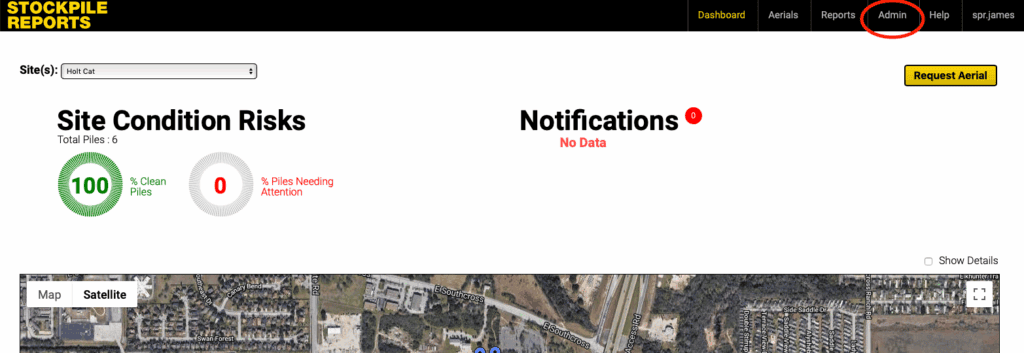
- Click the Admin Tab in the top right corner of the Stockpile Reports web portal
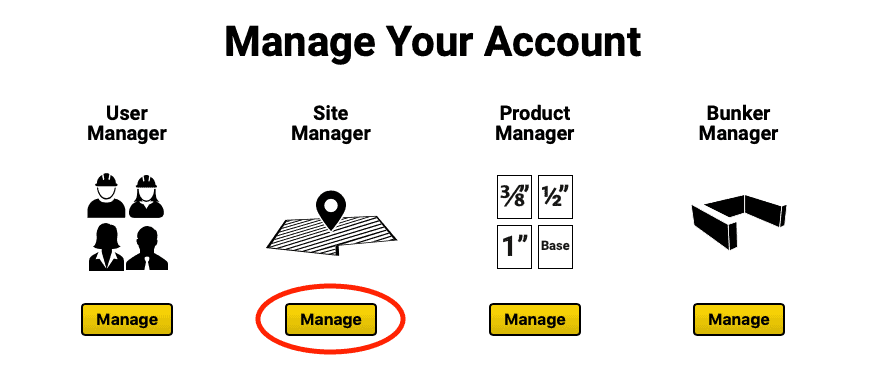
- On the Admin screen, under the Site Manager column, click the Manage button.
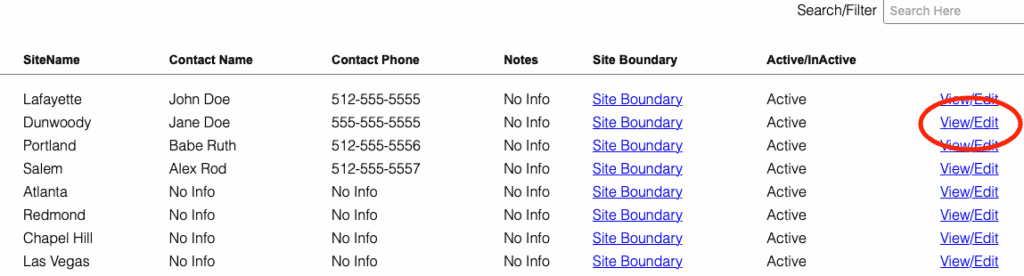
- If you have not added a site yet, click the Add Site button.
If you have already added a site, find it in the list of sites and click the View/Edit button.
- Add the site location information. The physical address of the site including the city, state, and zip code. The pilot will use this address to locate your site.
- After the address is entered, under the Site Contacts row, click the Add button to assign a primary and secondary site contact person. A secondary contact is optional, but strongly recommended.
The pilot will call the site contact 24-48 hours before the scheduled flight to coordinate arrival procedures. Multiple failed attempts from the pilot to reach site contact(s) may result in a missed flight. Please ensure site contacts communicate with the pilot and respond to any
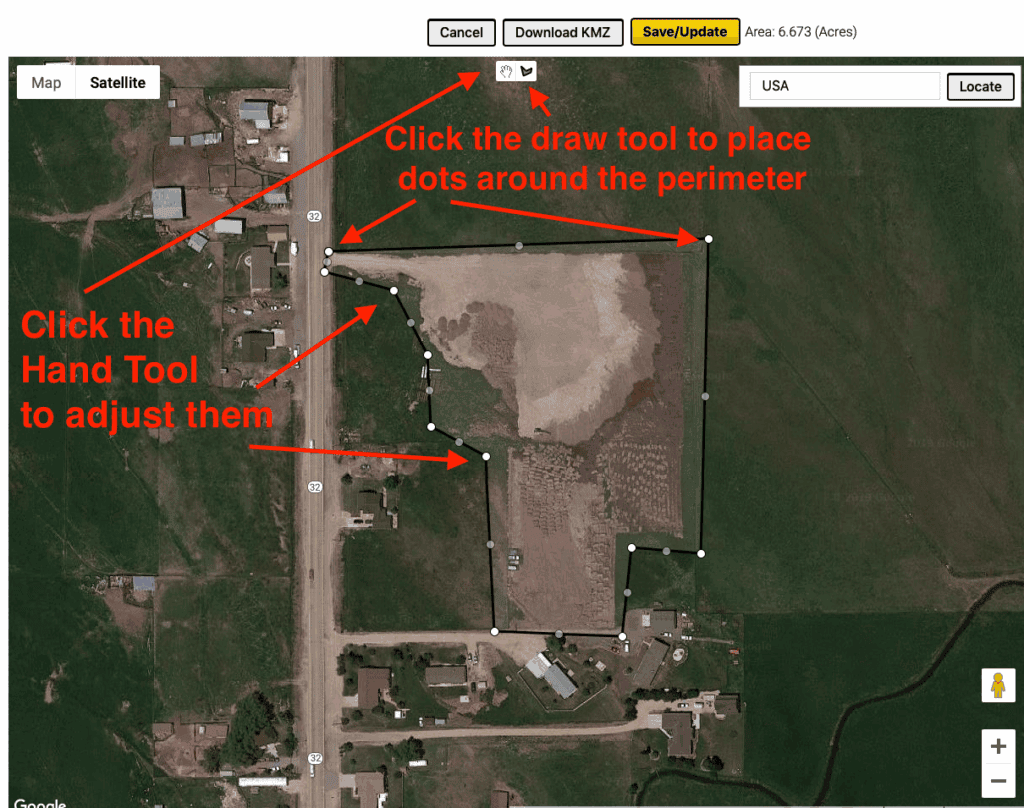
- Next, create the Site Perimeter Boundary – The site perimeter boundary is the entire area that tells the pilot what to fly over. Any area outside of the boundary will NOT be flown.
This will be a single outline. This is NOT the tool you use to tell us which piles you want measured.
Flights ARE completed as a single continuous flight. So, if you have different areas of your site with piles on them, the site boundary should encompass the entire area.
Consider if future piles will end up falling outside of this site boundary. Expand the single site boundary to the area that will include pile storage expansion areas in future flights.
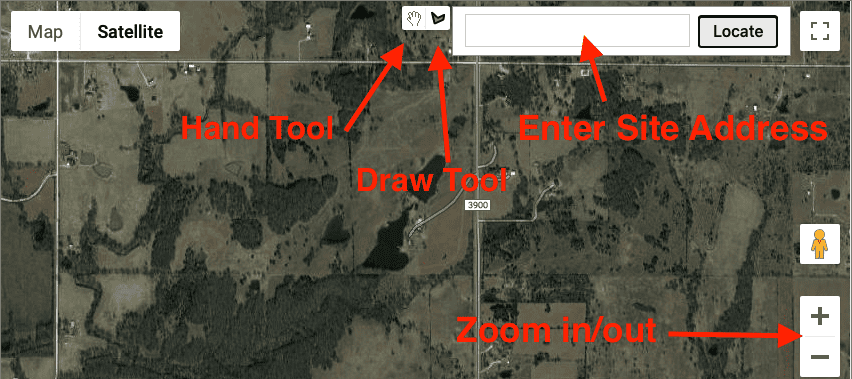
- To locate the site, type the site address into the Locate box and click Locate.
- Use the +/- button at the bottom right of the map to zoom in and out until your entire site is in view.
- Click the Draw a Shape button at the top center of the map. Next, click around the edges of your site to create a boundary for the aerial. Once complete, the boundary will appear in red with a confirmation pop up. Click Ok when you are happy with your boundary.
- Click the Update button to save your changes