



This article explains how to schedule Full-Service Aerial flights and monitor their progress across multiple sites and dates. You can schedule one-time or recurring flights.
Scheduling a Full-Service Aerial #
Flights cannot be scheduled within 7 days of the desired date.
Schedule multiple sites at once only if the request date and frequency are the same.
Flights cannot be scheduled for sites missing boundary or contact info.
- Click Request Flight at the top of the screen from the Dashboard or Aerial tab.
- Select site(s): Check the box next to the sites you want flown.
- Select desired flight date from the calendar.
- Set frequency: Choose one-time, weekly, monthly, or quarterly.
Example: If scheduled on January 28 and set to monthly, the flight will recur on the 28th each month. - Specify number of instances (how many times you want the flight to occur).
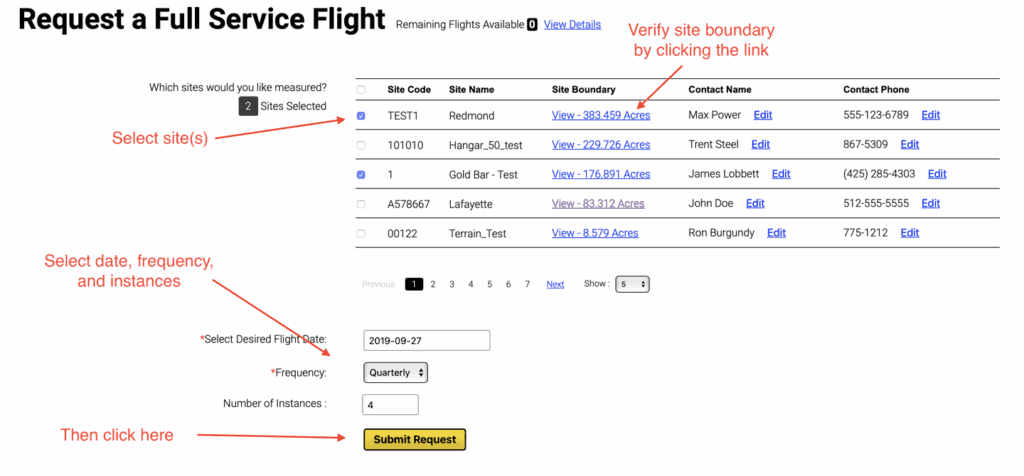
- Review site information: Confirm the site boundary and contact info are accurate.
- Click Submit Request to send your request to Stockpile Reports.
Checking Flight Status #
- Click the Aerial tab at the top of the portal.
- In Full-Service Aerials, select the date range and site(s) you want to check.
- A green check mark indicates each completed phase. Hover over the check to see the completion date.
Flight Status Definitions #
- Requested: Flight request received; locating a pilot.
- Scheduled: Assigned to a pilot.
- Flown: Flight completed; date recorded.
- Uploaded: Pilot images uploaded and ready for pile tagging.
- Piles Tagged: Piles outlined and submitted for processing.
- If not completed, click “Tag Piles” in the Action column.
- Piles Processed: Measurements generated.
- Reports Ready: Reports available.
- Select View to access reports.
- Action: Hover to view options: View Piles, View Aerial Image, Download Aerial Image/Notes, or Subscribe to Alerts.