



Add and assign products to sites, assign conversion rates, and delete existing products.
Video Tutorial #
Add a New Product #
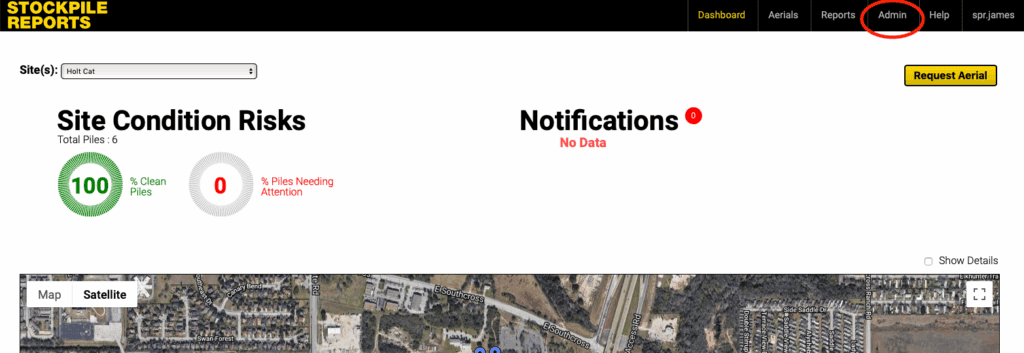
- Click on the Admin tab.
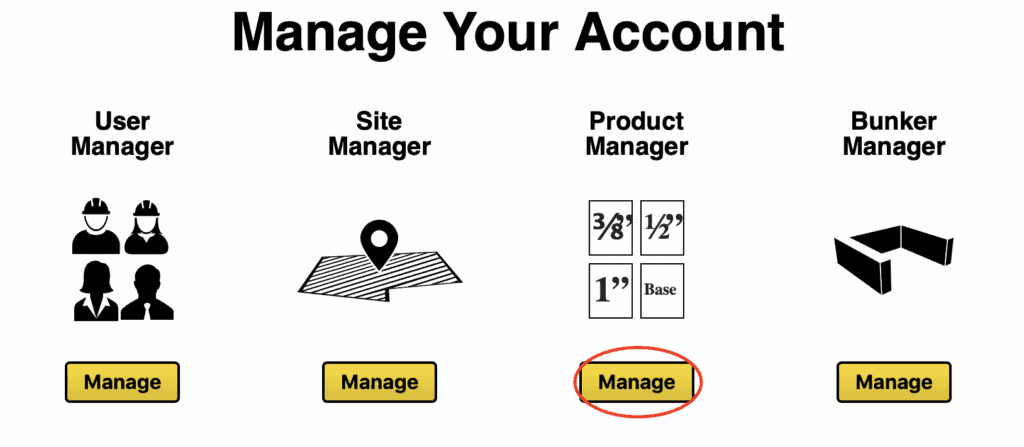
- Click the Manage button under the Product Manager icon.
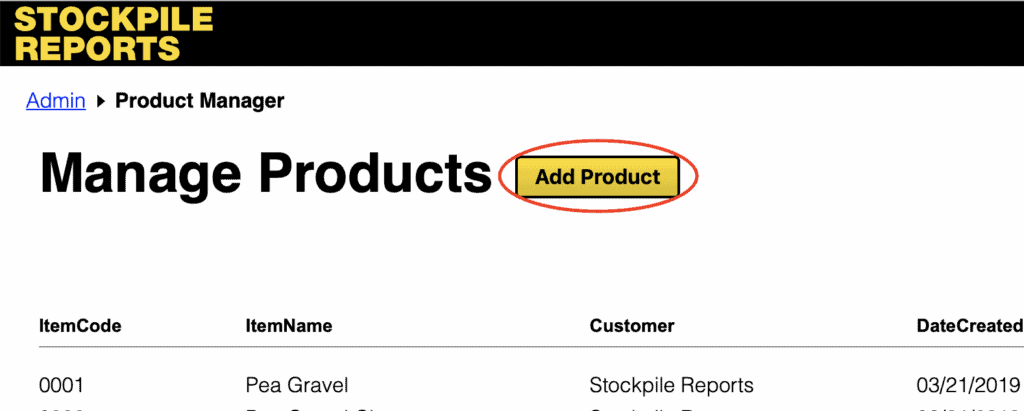
- Click the Add Product button to bring up the new product form.
- Fill out the new product form following the guidelines below:
- Item Code: A unique item code for the product (may not include spaces or special characters)
- Item Name: Name the product (does not need to be unique and can contain special characters)
- Active:
- Item Code: A unique item code for the product (may not include spaces or special characters)
- Item Name: Name the product (does not need to be unique and can contain special characters)
- Select Which Sites Have This Product: Check mark the boxes for each site for which the product is associated. Fill in the associated tons per cubic yard conversion ratio for each selected site
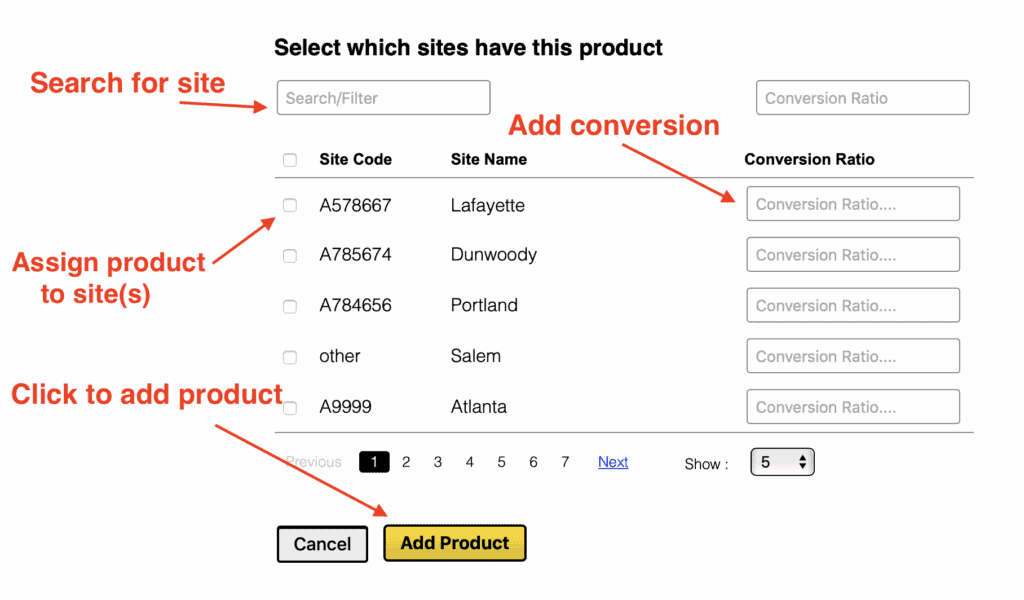
- Click the Add Product button to add to each associated site.
Update a Product #
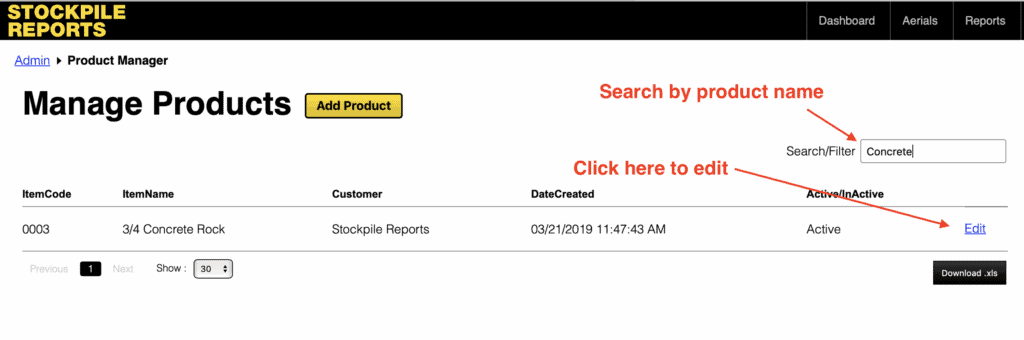
- From the Web Dashboard, click Admin → Manage under Product Manager.
- Click the Edit button to access the product information form.
- Edit the name and code fields, edit the associated site(s) and update conversions as needed.
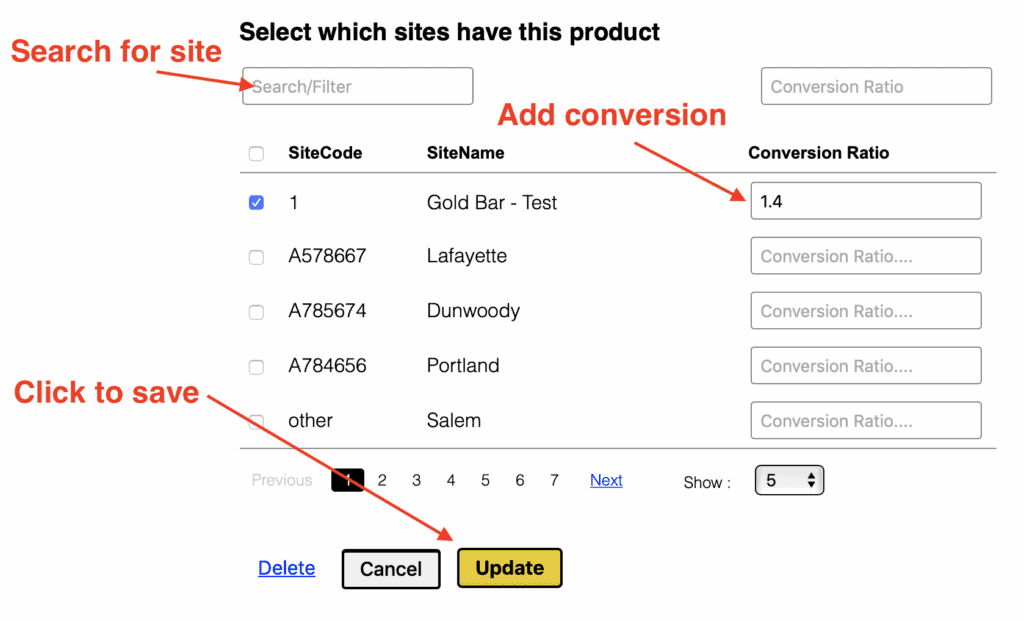
- Click the Update button to save your changes.
Click the Update button to save your changes.
Delete a Product #
- From the Web Dashboard, click Admin → Manage under Product Manager.
- Click the Edit button to access the product information form.
- Scroll to the bottom of the product information form and click the Delete button and confir
By deleting a product, all piles associated with the product will be retired