


Every Pile, Any Timeβ„’ | Stockpile Reports
  • Industry
    • Asphalt
    • Contract Crushing
    • DOTs & Public Works
    • Landscape Materials
    • Ready-Mix
  • About
  • Pricing
  • Resources
    • Help Center
    • Blog
Login
Every Pile, Any Timeβ„’ | Stockpile Reports
  • Industry
    • Contract Crushing
    • DOTs & Public Works
    • Landscape Materials
    • Ready-Mix
  • About
  • Pricing
  • Resources
    • Help Center
    • Blog
  • Login
  • Industry
    • Contract Crushing
    • DOTs & Public Works
    • Landscape Materials
    • Ready-Mix
  • About
  • Pricing
  • Resources
    • Help Center
    • Blog
  • Login

SR Measure

4
  • How To Measure a 2-Sided Bunker Pile
  • How to Measure a Freestanding Stockpile
  • How to Measure a Pile Against a Wall
  • How to Measure a 3-Sided Bunker Pile

Self-Service Drone Flights

6
  • Uploading Self-Service Drone Images to Stockpile Reports
  • What Drone and App Should You Use?
  • Viewing Your Self-Service Aerial Report
  • How to Set Up Your Drone for Measuring Inventory
  • Track Your Self-Service Aerial Uploads and Reports
  • Tagging Piles for Measurement (Self-Service Aerials)

Full Service Drone Flights

5
  • How to Schedule a Full-Service Aerial
  • Preparing Your Account for Full-Service Aerials
  • Track Your Full-Service Aerial Flights and Reports
  • Tagging Piles for Measurement (Full-Service Aerials)
  • Viewing Your Full-Service Aerial Reports

Web Portal

4
  • How To Retire a Stockpile
  • How to Manually Verify a Measurement
  • How to View and Verify Stockpile Measurement Reports
  • Camera Status Tool

Admin & Billing

8
  • How to Access Admin Tools
  • How to Fix Product Details
  • How to Manage Your Products
  • How to Update a Conversion Ratio on a Measurement
  • How to Manage Your Sites
  • How to Manage Users
  • How to Manage Your Bunkers
  • How to Clear Your Browser Cache

Troubleshooting

1
  • Contact Support
View Categories
  • Docs
  • Web Portal
  • Camera Status Tool

Camera Status Tool

The Camera Status Tool allows admins to monitor installed camera systems, check system health, and troubleshoot issues such as connectivity, upload delays, or offline cameras.


Accessing the Camera Status Tool #

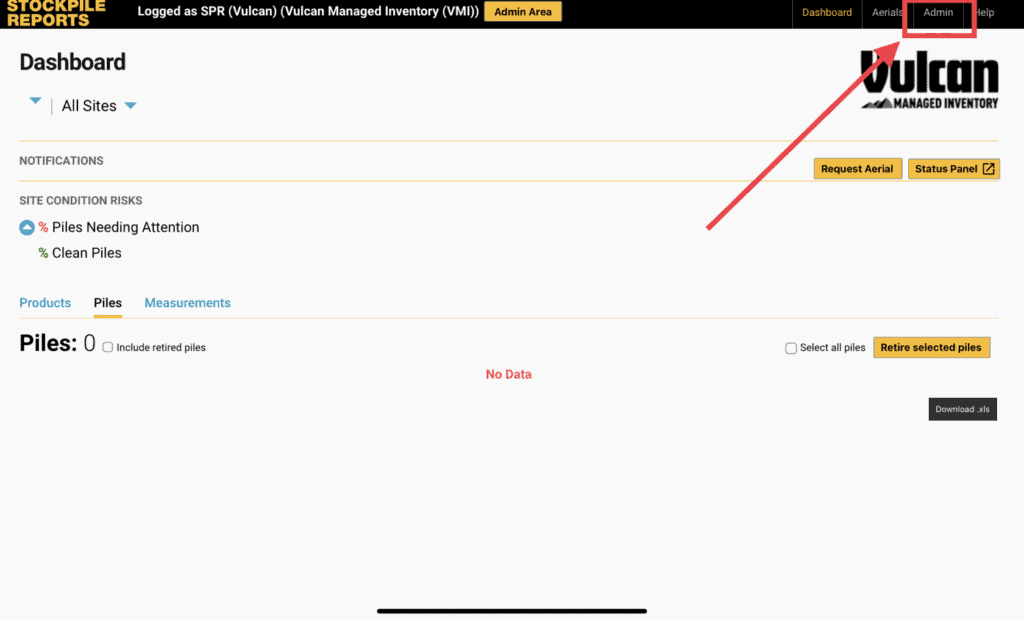
  1. From the Stockpile Reports Web Dashboard, click the Admin tab.
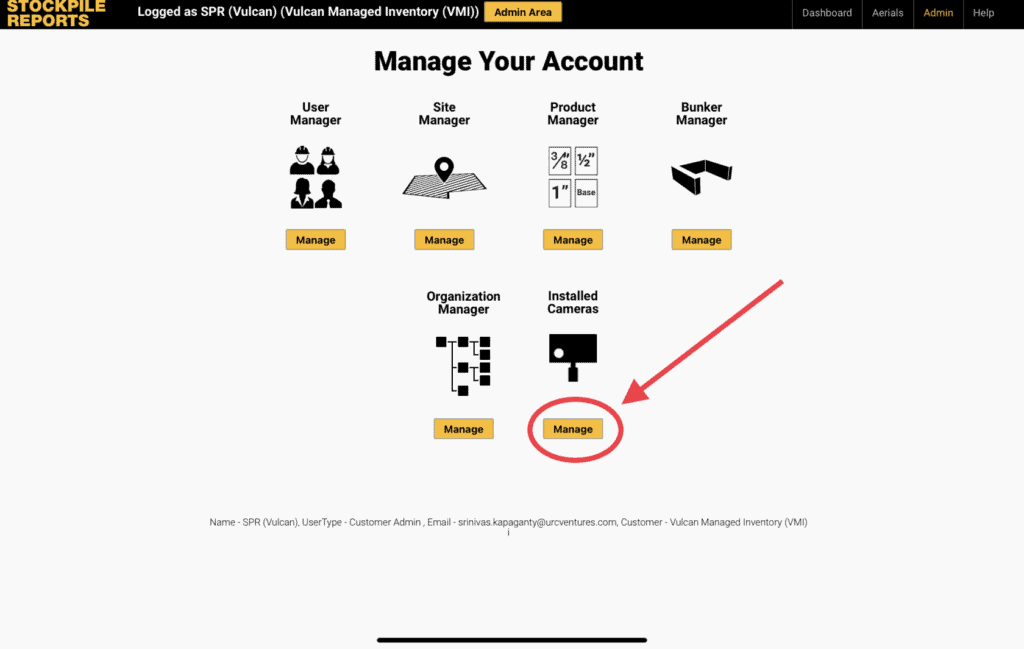
  1. Under Camera Manager, click Manage.

Using the Camera Status List #

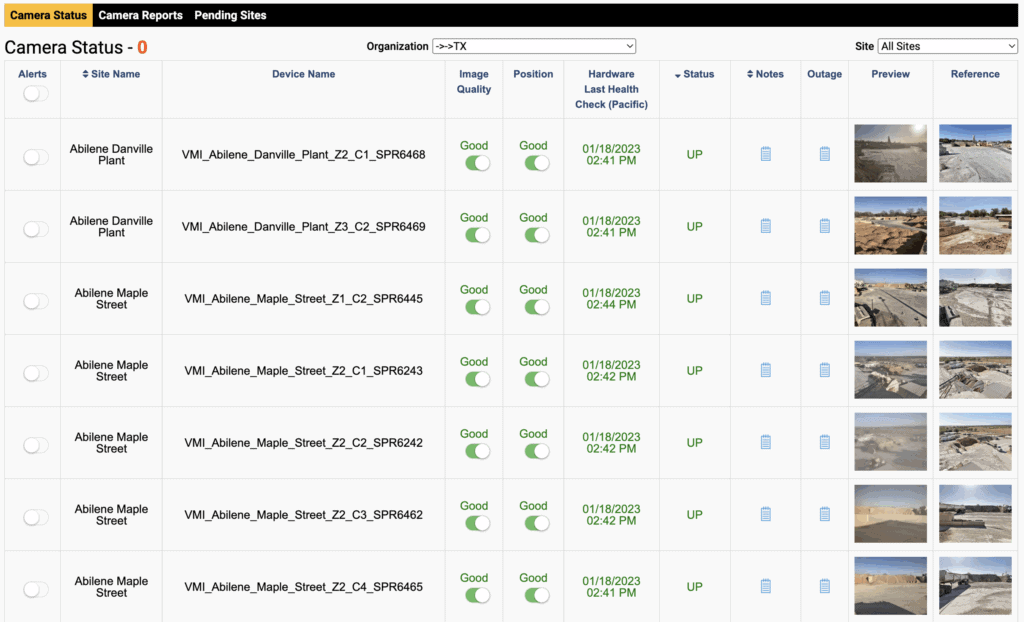
The Camera Status Tool displays all connected cameras in a table. Each row shows:

  • Site – Where the camera is installed
  • Name – Camera ID
  • Status Icons – Indicators for power, connectivity, and uploads
  • Last Upload – Date/time of the most recent upload
  • Preview – Thumbnail image from the last capture
Understanding Camera Status Indicators #

🟒 Green – Normal operation

🟑 Yellow – Warning, check configuration or recent activity

πŸ”΄ Red – Error or offline

Common cases include:

  • No Recent Uploads – Camera is online but not sending images (network issue, SD card, or power cycle may be needed).
  • Offline Camera – Camera is disconnected or has no power.
  • Image Upload Errors – Camera uploads are failing. Check local storage, connectivity, and settings.

Taking Action on a Camera #

From the Camera Status table, you can:

  • Edit Camera Settings – Update configuration for that site.
  • Deactivate a Camera – Temporarily disable without deleting.
  • Delete a Camera – Permanently remove from the account.

Best Practices for Camera Monitoring #

  • Check the Camera Status Tool daily to confirm cameras are uploading correctly.
  • Investigate any red/yellow indicators immediately.
  • Keep site contact information up to date so issues can be resolved quickly.
  • Review preview images to confirm cameras are positioned and capturing piles as expected.
Updated on October 7, 2025
Business

What are your feelings

How to View and Verify Stockpile Measurement Reports
Table of Contents
  • Accessing the Camera Status Tool
  • Using the Camera Status List
  • Understanding Camera Status Indicators
  • Taking Action on a Camera
  • Best Practices for Camera Monitoring
Every Pile, Any Timeβ„’ | Stockpile Reports

8201 164th Ave NE, PMB 55

Redmond, WA 98052

Quick Links

About

Pricing

Blog

Contact

(425) 428-5266

Send us a message

  • Follow
  • Follow
  • Follow
  • Follow
  • Follow

Β© Copyright Stockpile Reports 2025. Privacy Policy.