


Every Pile, Any Time™ | Stockpile Reports
  • Industry
    • Asphalt
    • Contract Crushing
    • DOTs & Public Works
    • Landscape Materials
    • Ready-Mix
  • About
  • Pricing
  • Resources
    • Help Center
    • Blog
Login
Every Pile, Any Time™ | Stockpile Reports
  • Industry
    • Contract Crushing
    • DOTs & Public Works
    • Landscape Materials
    • Ready-Mix
  • About
  • Pricing
  • Resources
    • Help Center
    • Blog
  • Login
  • Industry
    • Contract Crushing
    • DOTs & Public Works
    • Landscape Materials
    • Ready-Mix
  • About
  • Pricing
  • Resources
    • Help Center
    • Blog
  • Login

SR Measure

4
  • How To Measure a 2-Sided Bunker Pile
  • How to Measure a Freestanding Stockpile
  • How to Measure a Pile Against a Wall
  • How to Measure a 3-Sided Bunker Pile

Self-Service Drone Flights

6
  • Uploading Self-Service Drone Images to Stockpile Reports
  • What Drone and App Should You Use?
  • Viewing Your Self-Service Aerial Report
  • How to Set Up Your Drone for Measuring Inventory
  • Track Your Self-Service Aerial Uploads and Reports
  • Tagging Piles for Measurement (Self-Service Aerials)

Full Service Drone Flights

5
  • How to Schedule a Full-Service Aerial
  • Preparing Your Account for Full-Service Aerials
  • Track Your Full-Service Aerial Flights and Reports
  • Tagging Piles for Measurement (Full-Service Aerials)
  • Viewing Your Full-Service Aerial Reports

Web Portal

4
  • How To Retire a Stockpile
  • How to Manually Verify a Measurement
  • How to View and Verify Stockpile Measurement Reports
  • Camera Status Tool

Admin & Billing

8
  • How to Access Admin Tools
  • How to Fix Product Details
  • How to Manage Your Products
  • How to Update a Conversion Ratio on a Measurement
  • How to Manage Your Sites
  • How to Manage Users
  • How to Manage Your Bunkers
  • How to Clear Your Browser Cache

Troubleshooting

1
  • Contact Support
View Categories
  • Docs
  • Admin & Billing
  • How to Update a Conversion Ratio on a Measurement

How to Update a Conversion Ratio on a Measurement

Updating the conversion ratio on a single measurement.


Video Tutorial #


Updating a Conversion Factor Through the Measurements Tab #

Managing default conversion factors is done through the Product Manager and must be performed by an admin level user. See our Product Manager article. Additionally, modifying a single measurement’s conversion factor must also be done by an admin.

  1. Log into Stockpile Reports
  2. Choose the site at which the pile is located.
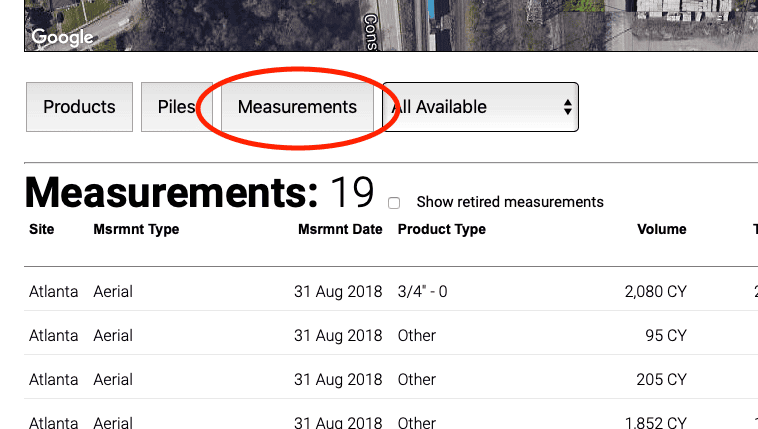
  3. Scroll down click the Measurements tab button.
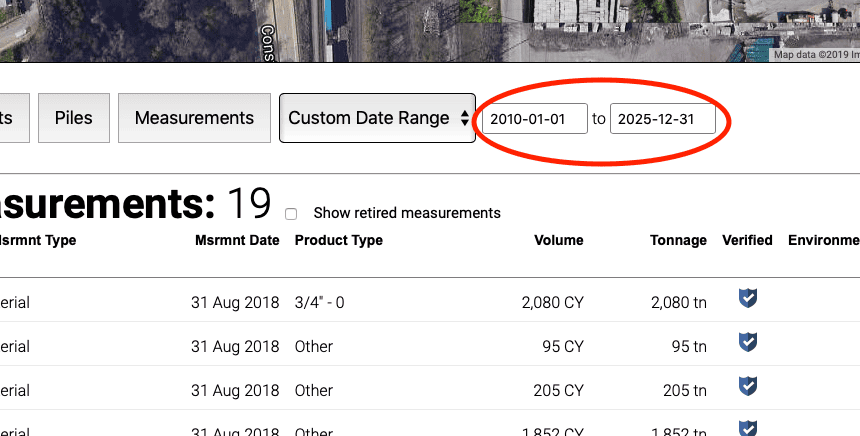
  1. Adjust the Date Range if necessary.
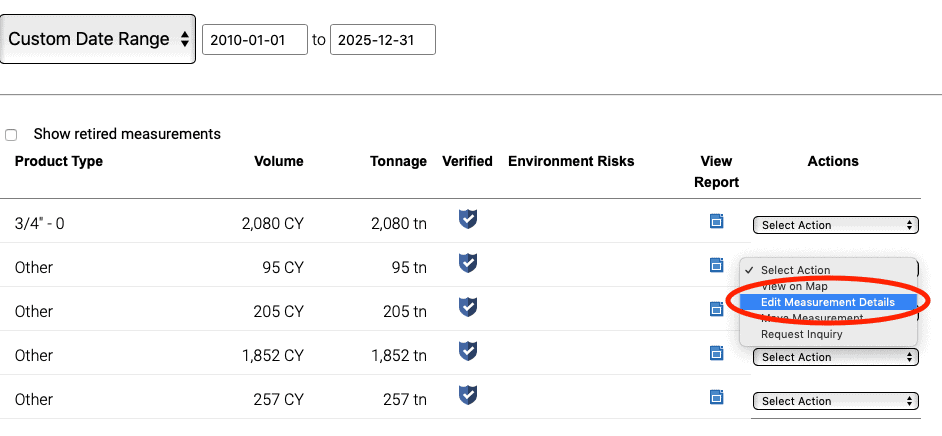
  1. Locate the pile you wish to update and open the dropdown under the Actions column and choose Edit Measurement Details.
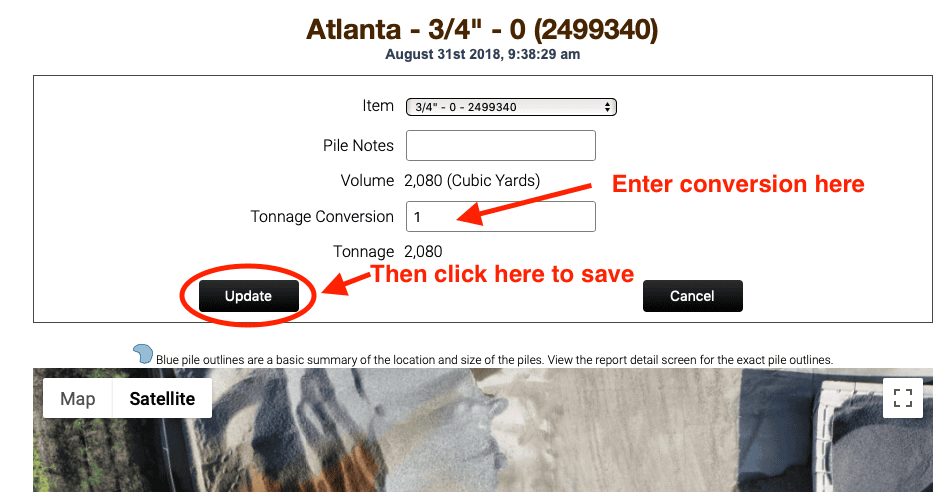
  1. Type in the new conversion on the Edit Pile Details page and click the Update button.
  1. Click the Dashboard tab to navigate back to the measurements page and you’ll find that your measurement has been updated with the new conversion ratio.
Updated on October 7, 2025
Business

What are your feelings

How to Manage Your ProductsHow to Manage Your Sites
Table of Contents
  • Video Tutorial
  • Updating a Conversion Factor Through the Measurements Tab
Every Pile, Any Time™ | Stockpile Reports

8201 164th Ave NE, PMB 55

Redmond, WA 98052

Quick Links

About

Pricing

Blog

Contact

(425) 428-5266

Send us a message

  • Follow
  • Follow
  • Follow
  • Follow
  • Follow

© Copyright Stockpile Reports 2025. Privacy Policy.