

The Camera Status Tool allows admins to monitor installed camera systems, check system health, and troubleshoot issues such as connectivity, upload delays, or offline cameras.
Accessing the Camera Status Tool #
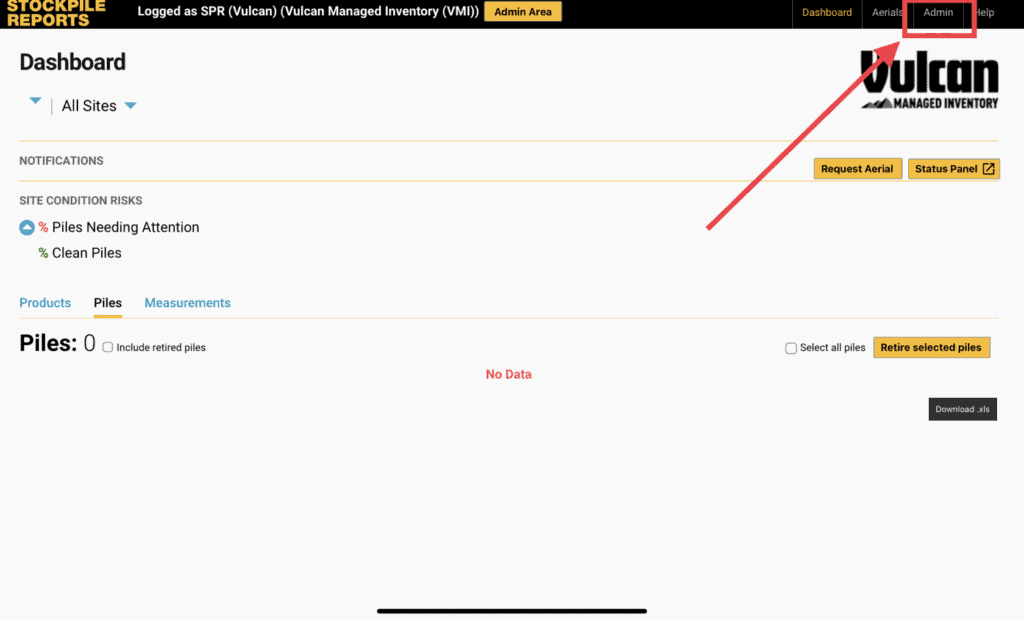
- From the Stockpile Reports Web Dashboard, click the Admin tab.
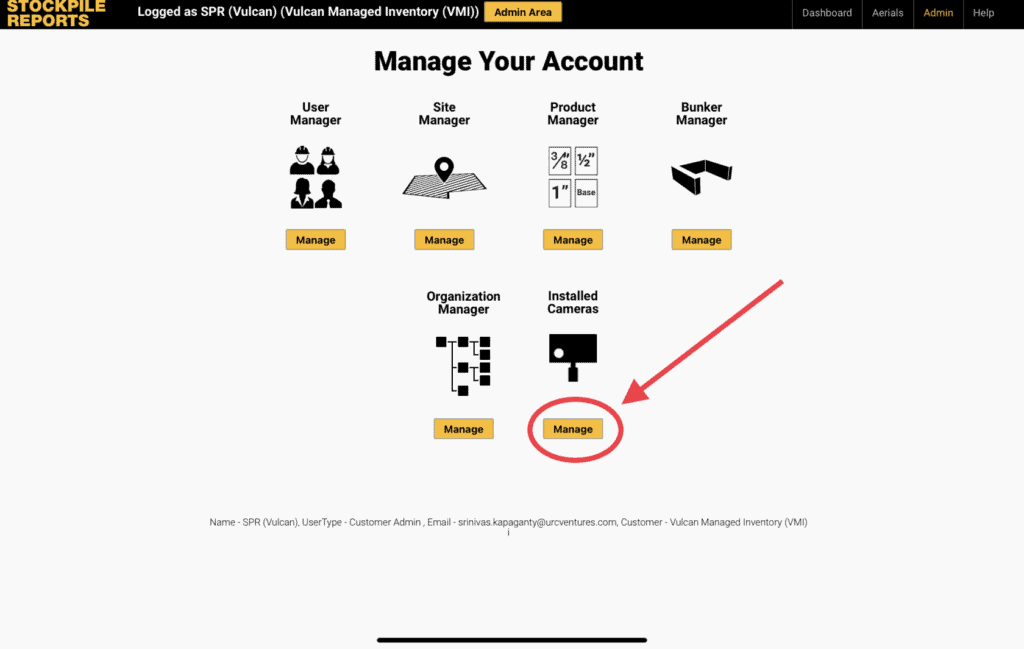
- Under Camera Manager, click Manage.
Using the Camera Status List #
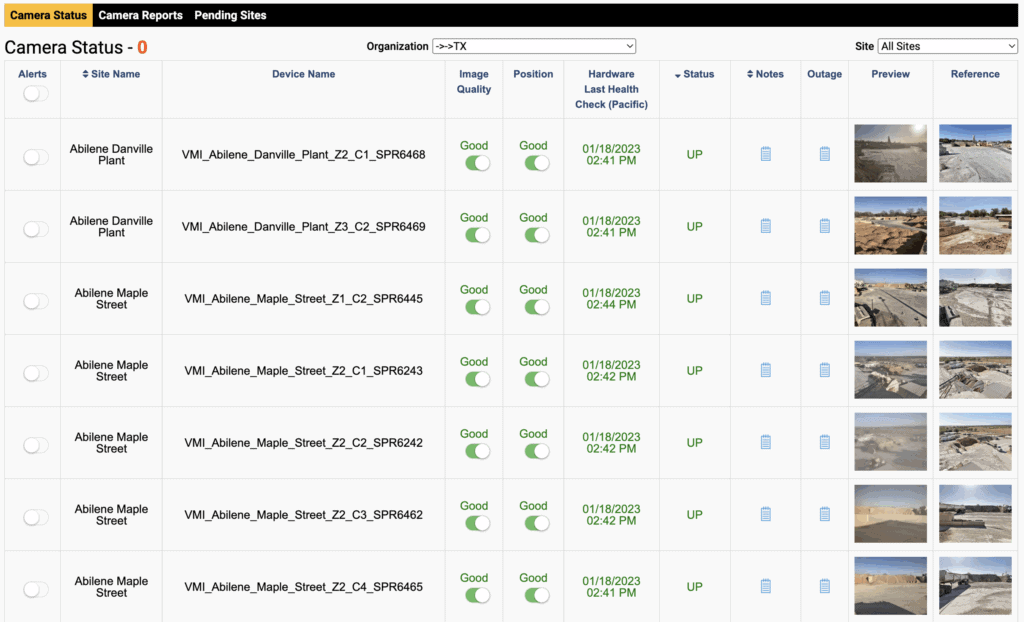
The Camera Status Tool displays all connected cameras in a table. Each row shows:
- Site – Where the camera is installed
- Name – Camera ID
- Status Icons – Indicators for power, connectivity, and uploads
- Last Upload – Date/time of the most recent upload
- Preview – Thumbnail image from the last capture
Understanding Camera Status Indicators #
🟢 Green – Normal operation
🟡 Yellow – Warning, check configuration or recent activity
🔴 Red – Error or offline
Common cases include:
- No Recent Uploads – Camera is online but not sending images (network issue, SD card, or power cycle may be needed).
- Offline Camera – Camera is disconnected or has no power.
- Image Upload Errors – Camera uploads are failing. Check local storage, connectivity, and settings.
Taking Action on a Camera #
From the Camera Status table, you can:
- Edit Camera Settings – Update configuration for that site.
- Deactivate a Camera – Temporarily disable without deleting.
- Delete a Camera – Permanently remove from the account.
Best Practices for Camera Monitoring #
- Check the Camera Status Tool daily to confirm cameras are uploading correctly.
- Investigate any red/yellow indicators immediately.
- Keep site contact information up to date so issues can be resolved quickly.
- Review preview images to confirm cameras are positioned and capturing piles as expected.